Select Both Items and Categories When Creating a Routing Rule
Stay is enhanced to allow users to select both items and categories simultaneously when creating a routing rule template.
To support this enhancement, the Categories & Items tabs displayed in the Step 2: For Charges section of the Add New Template pop-up screen (All Settings ➜ Templates ➜ Routing Rule Templates ➜ Add) displays all the active categories available at a property and the transactions and inventory items associated with the categories in a nested format. An accordion is displayed next to each category. When expanded, all the transaction and inventory items associated with the category are displayed.
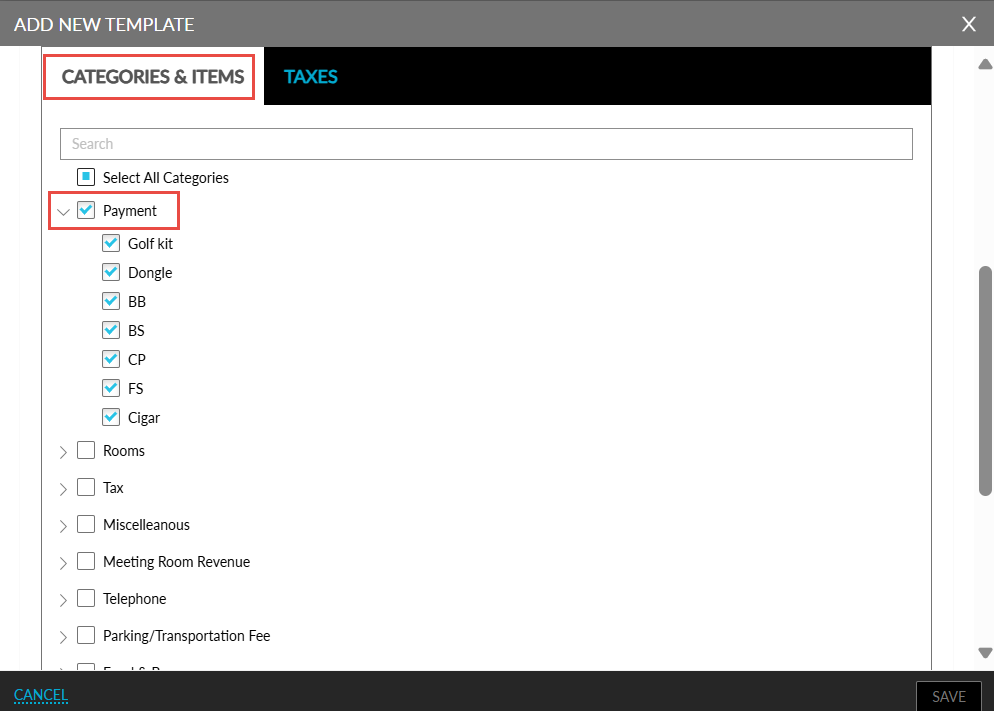
When a category is selected, all the associated items are selected by default. Similarly, when all the items in a category are selected, the associated category is selected by default.
The categories and their associated items are displayed in the following areas from where users can create or modify a routing rule:
-
All Settings ➜ Routing Rule Templates.
-
Reservation ➜ Payment ➜ Summary ➜ Add Account Routing Rule.
-
Reservation ➜ Payment ➜ Folio ➜ More ➜ Add Routing Rule.
-
Groups ➜ Folio & Routing Rules ➜ Summary ➜ Group Reservation Rules ➜ Add a Reservation Routing Rule.
-
Groups ➜ Folio & Routing Rules ➜ Summary ➜ Group Reservation Rules ➜ Add Account Routing Rule.
-
Batch operations ➜ Batch Edit ➜ More ➜ Add Routing Rule.
-
Reservation ➜ Book a Reservation ➜ Other ➜ Routing Rule ➜ Group Rules/Individual Rules.
-
All Settings ➜ General ➜ Loyalty Programs ➜ Benefits ➜ Add/Edit.
This feature can also be used when users split charges in the folios of reservations, groups, and house accounts using the Routing rule template option in the Split Charges pop-up screen (Reservation/group/house account ➜ Folios section ➜ More ➜ Split Charge).
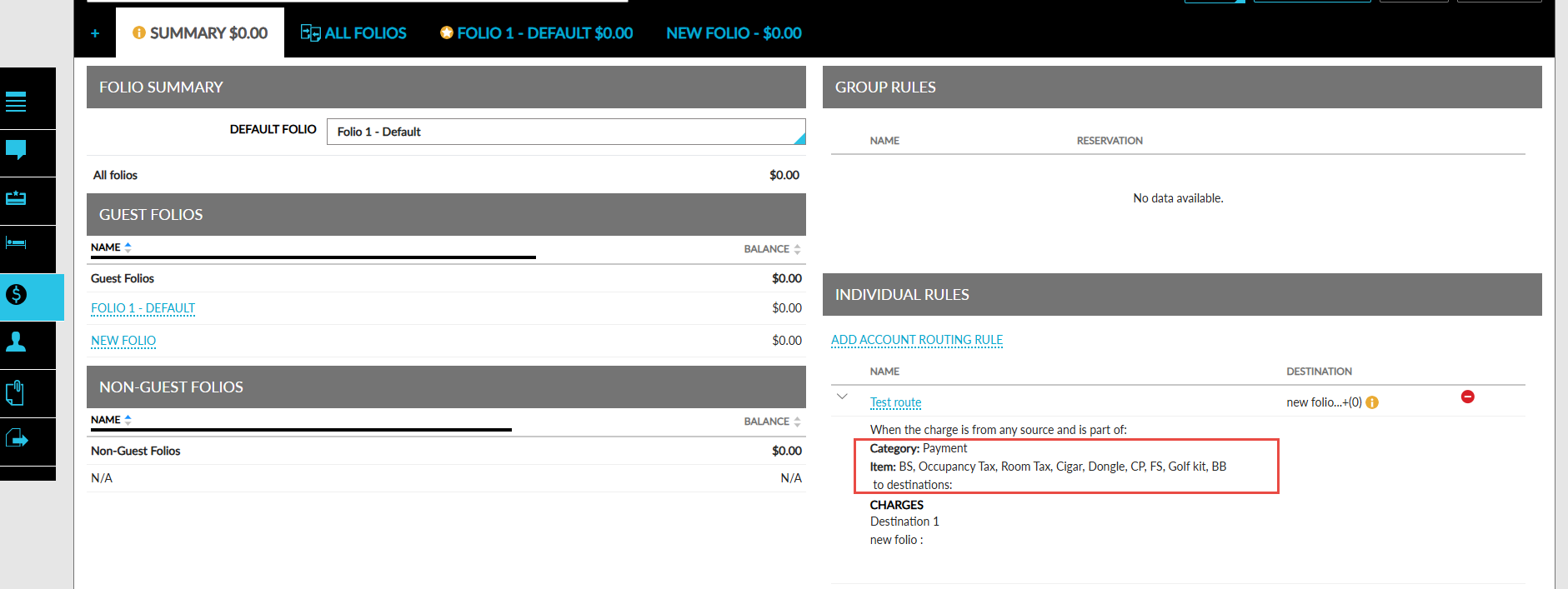
Description of the routing rule selected for reservations (Reservation ➜ Folios section ➜ Summary) and groups (Groups ➜ Folio & Routing Rules ➜ Group Reservation Rules/Group Account Rules) will display both categories and items selected in the routing rule.